> ## Documentation Index
> Fetch the complete documentation index at: https://docs.lute.gg/llms.txt
> Use this file to discover all available pages before exploring further.
# Dashboard
> Realtime overview, widgets, and customization. Your command center for market and portfolio insights.
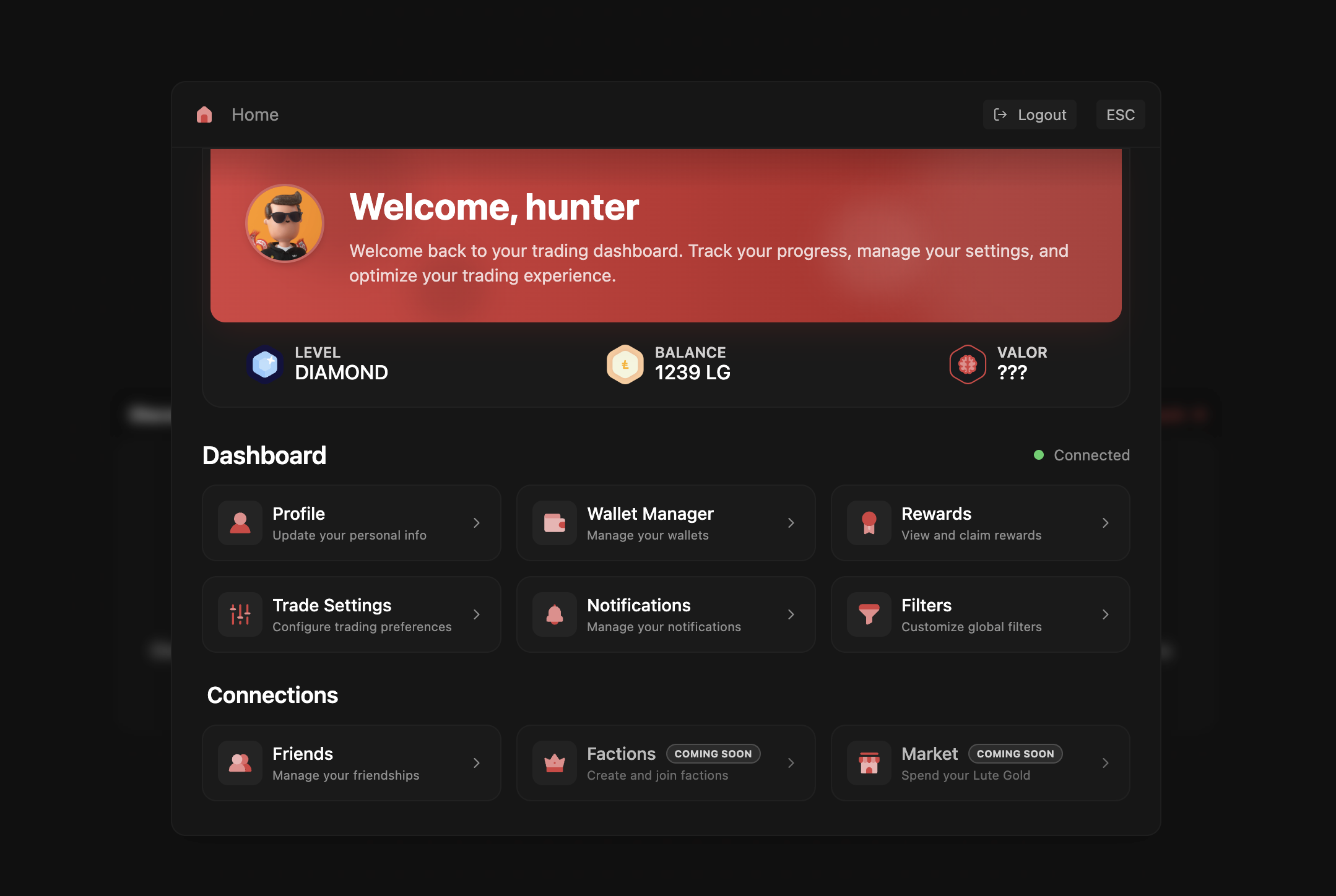
Your personal command center for managing accounts, tracking performance, and customizing your Lute experience.
 ## Quick Access
Customize your profile, manage security settings, and control account preferences
Track PnL, manage multiple wallets, export keys, and withdraw funds
View referral earnings, claim rewards, and track your cashback tier
Configure slippage, MEV protection, priority fees, and execution preferences
## Social & Alerts
Control alerts for trades, friend activity, and platform updates
Set custom filters for token discovery and trading signals
Manage friend connections and social trading features
## How to Access
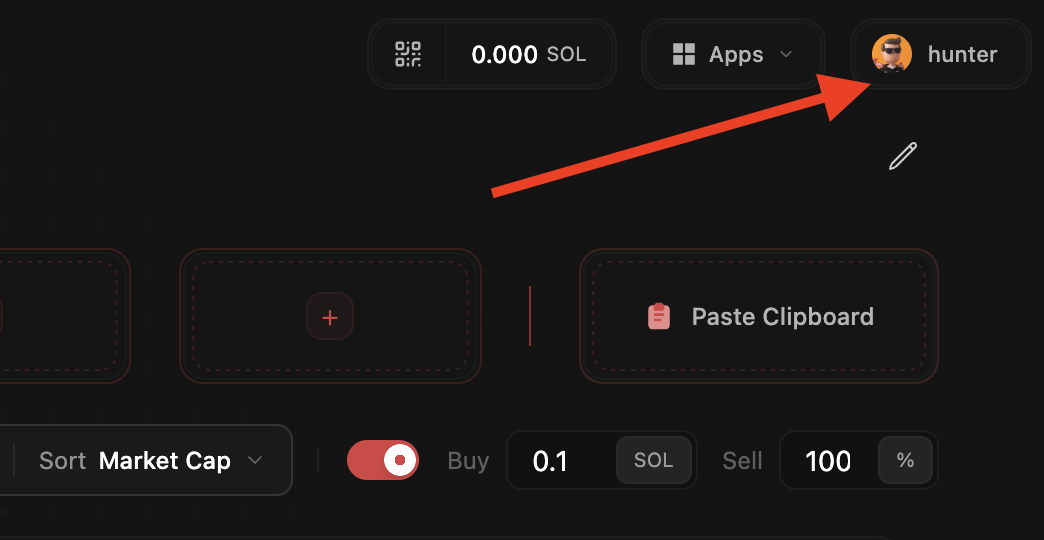
Find your profile photo in the top-right corner of any Lute screen
Click on your profile photo to open the Dashboard menu
Select any section from the dropdown or click "Dashboard" for the full view
## Quick Access
Customize your profile, manage security settings, and control account preferences
Track PnL, manage multiple wallets, export keys, and withdraw funds
View referral earnings, claim rewards, and track your cashback tier
Configure slippage, MEV protection, priority fees, and execution preferences
## Social & Alerts
Control alerts for trades, friend activity, and platform updates
Set custom filters for token discovery and trading signals
Manage friend connections and social trading features
## How to Access
Find your profile photo in the top-right corner of any Lute screen
Click on your profile photo to open the Dashboard menu
Select any section from the dropdown or click "Dashboard" for the full view
 **Quick Logout**: Need to sign out? The logout option is available in the Dashboard dropdown menu in the top right.